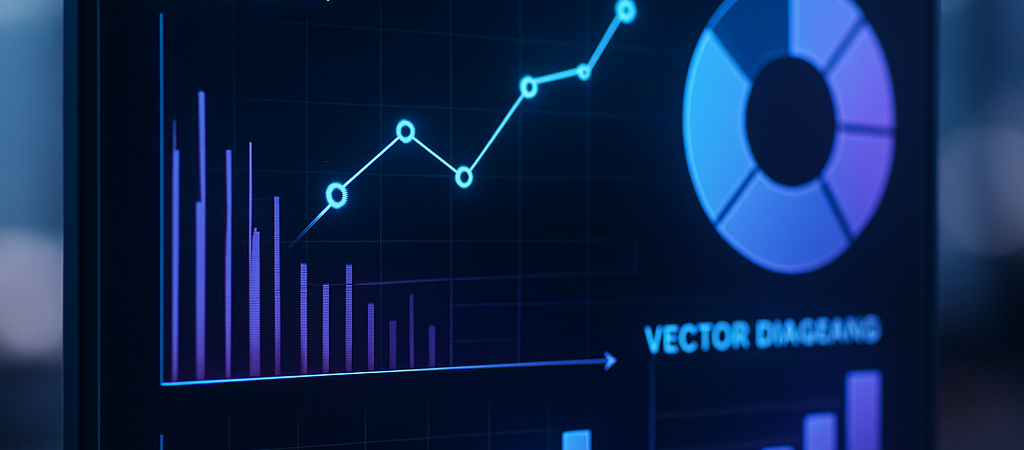
OpenAI just effectively fired every corporate strategist’s least favorite task: manually formatting charts. With the surprise reveal of ChatGPT Images 2.0, the company has moved past psychedelic art and “DALL-E’s weird fingers” into the realm of high-utility, precision engineering. This isn’t about generating a cool avatar; it’s about generating a board-ready scientific diagram that actually contains correct data.
| Attribute | Details |
| :— | :— |
| Difficulty | Beginner (Natural Language Based) |
| Time Required | 30–60 Seconds per render |
| Tools Needed | Plus, Team, or Enterprise Account |
| Key Feature | Vector-like precision for charts & diagrams |
The Why: Precision is the New Creativity
Until now, AI image generators were essentially “vibes-based.” You could ask for a “graph showing growth,” but the numbers would be gibberish, the lines would intersect at impossible angles, and the text looked like an alien alphabet. For professionals, this made AI-generated imagery useless for serious documentation.
ChatGPT Images 2.0 solves the hallucination of data visualization. By shifting the underlying architecture to understand spatial hierarchy and text rendering, OpenAI is targeting the $40 billion business productivity software market. Why spend three hours in Lucidchart or PowerPoint when you can describe a complex biological process or a quarterly fiscal trend and get a high-resolution, accurate diagram in seconds? This is the bridge between “generative art” and “functional assets.”
Step-by-Step: How to Generate Accurate Diagrams
To get the most out of the 2.0 engine, you need to move beyond simple prompts. Use these steps to ensure your output is functional.
- Supply the Data: Don’t just ask for a “chart.” Paste your raw CSV data or a clear summary of the statistics into the chat window first.
- Define the Schema: Specify the exact type of visual. Use terms like “Sankey diagram,” “double-axis bar chart,” or “cross-sectional scientific illustration.”
- Label Your Axes: Explicitly state what the X and Y axes represent. For scientific diagrams, list the specific parts that require labels (e.g., “Label the mitochondria, ribosome, and nucleus clearly”).
- Style for the Audience: Command the model to use “flat vector style for a whitepaper” or “high-contrast 3D render for a keynote presentation.”
- Refine via Chat: If a label is misspelled—a rare but possible occurrence—don’t restart. Tell the AI, “Change the label on the far right to ‘Projected Growth’ and move the legend to the bottom.”
💡 Pro-Tip: If you need to edit these images later in Adobe Illustrator, ask ChatGPT to “generate the diagram with high-contrast outlines and a solid background color.” This makes it significantly easier to use “Image Trace” to convert the output into a fully editable vector file.
The Buyer’s Perspective: OpenAI vs. The World
For a long time, Midjourney owned the “aesthetic” crown, while Canva and Adobe integrated AI to help with layout. ChatGPT Images 2.0 changes the math.
Midjourney still struggles with readable text and structured data. Disney and Universal sue AI image generator Midjourney over copyright claims, which has shifted some professional focus toward more controlled enterprise tools. Adobe Firefly is safe for commercial use but often feels “clipped,” and while Anthropic’s Claude Design is beginning to automate UI prototypes, OpenAI’s advantage here is the reasoning-to-rendering pipeline. Because the model understands the logic of the data you provide, the resulting image isn’t just a picture of data—it’s a visual manifestation of the logic.
However, there is a catch: control. Unlike specialized tools like BioRender or Tableau, you can’t “click and drag” a single bar in the chart yet. You are still reliant on the model’s interpretation. For 90% of users, the speed-to-quality ratio will make this the new gold standard. To ensure your outputs are truly accurate, many professionals are turning to an AI image evaluation platform to rank the world’s top generators based on human preference data.
FAQ
Can it handle my proprietary company data safely?
If you are on an Enterprise or Team plan, OpenAI does not train on your data by default. However, always check your specific workspace settings before uploading sensitive fiscal spreadsheets.
Does this replace tools like Canva or Lucidchart?
It replaces the labor of those tools but not necessarily the storage. You’ll likely generate the asset in ChatGPT and then move it into your final presentation software for the finishing touches.
Does it still produce weird artifacts?
While 2.0 is exponentially better at text and straight lines, it can still struggle with extremely dense “spaghetti” diagrams. If the prompt is too cluttered, the visual hierarchy can break down.
Ethical Note/Limitation: While ChatGPT Images 2.0 can visualize data, it cannot “verify” the truth of the statistics you provide; it will happily create a beautiful, authoritative-looking chart for entirely fake information.