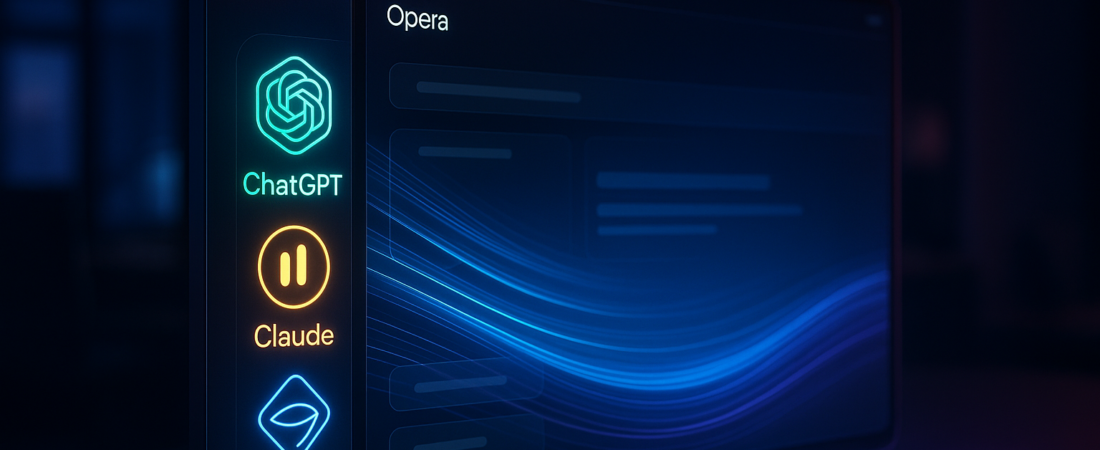
The era of tab-switching between your research and your AI is officially over. Browser-native AI is no longer a walled garden where you’re forced to use whatever model the developer built; Opera has just flipped the script by letting users plug their own preferred AI tools directly into the browser’s DNA.
| Attribute | Details |
| :— | :— |
| Difficulty | Beginner |
| Time Required | 3 Minutes |
| Tools Needed | Opera/Opera GX, API keys for ChatGPT, Gemini, or Claude |
The Why: Context Switching is a Productivity Killer
Most users treat their browser and their AI as two separate countries separated by a vast ocean of “Command+Tab” shortcuts. If you’re writing an email in one window and prompting Claude for a summary in another, you’re hemorrhaging focus.
The Opera “Browser Connector” solves the fragmentation problem. By allowing you to integrate the specific chatbots you actually use—rather than forcing a proprietary, watered-down assistant on you—Opera is transforming the browser from a viewing portal into a unified operating system for AI. It’s a shift toward “Bring Your Own AI” (BYOAI), ensuring your workflow isn’t dictated by which company signed a billion-dollar partnership this week. Unlike other browsers that might offer a Firefox Just Built an “Off” Switch for the AI Era, Opera is leaning entirely into integration.
Step-by-Step Instructions: Linking Your AI Arsenal
Opera is rolling this out via its developer and early-access streams (Opera One and Opera GX). Here is how to wire your favorite models directly into the sidebar.
- Update your browser. Ensure you are running the latest version of Opera One or Opera GX. This feature is currently appearing in the “Aria” settings and the sidebar setup menu.
- Access the Sidebar Setup. Click the three dots at the bottom of your sidebar to open the configuration panel.
- Enable “Browser Connector.” Look for the new “Services” or “Connector” toggle. This will open a management interface for third-party AI links.
- Select your providers. You’ll see icons for ChatGPT, Google Gemini, and Anthropic’s Claude. Check the boxes for the ones you use daily.
- Authenticate and Pin. Log in to each service once. They will now live as persistent, collapsible panels that float over your active webpage rather than living in a separate tab.
- Trigger with Shortcuts. Use the default shortcut (typically
Ctrl+/orCmd+/) to summon your chosen AI instantly while reading any article or document.
💡 Pro-Tip: Don’t just use this for chatting. Highlight any text on a webpage, right-click, and look for the “Send to [Your AI]” option. This bypasses the copy-paste ritual entirely, allowing you to feed context into Claude or Gemini with two clicks. This is especially useful if you want to Learn how to use Perplexity Model Council to eliminate AI hallucinations by comparing multiple model outputs side-by-side.
The Buyer’s Perspective: Why Opera is Beating Chrome at Its Own Game
Google has Gemini, and Microsoft has Copilot. Both companies have deeply integrated their AI into their respective browsers, but there’s a catch: they desperately want to lock you into their ecosystem. If you prefer Claude’s creative writing over Gemini’s data retrieval, Chrome makes you hunt for an extension or keep a tab open.
Opera’s value proposition is agnosticism. They aren’t trying to sell you their specific LLM (though they offer Aria as a baseline). They are positioning themselves as the “Switzerland” of browsers. This allows you to utilize powerful features like Anthropic’s Claude 3.5 Sonnet ‘Computer Use’ capabilities or the latest reasoning models without leaving your primary workspace.
From a professional standpoint, this makes Opera the superior choice for power users who mix and match tools—using ChatGPT for code, Claude for tone, and Gemini for Google Workspace integration. The “Browser Connector” feels snappy, lightweight, and, most importantly, invisible. It stays out of the way until you need it, unlike Microsoft’s Copilot sidebar which can often feel like aggressive bloatware.
FAQ
Does this feature cost extra?
No. Opera provides the infrastructure for free. However, if you use a “Plus” or “Pro” version of ChatGPT or Claude, those subscriptions remain separate and are managed through those individual platforms.
Will this slow down my browsing speed?
Unlikely. The Browser Connector functions more like a specialized iframe or a “web app” within the sidebar. It only consumes significant RAM when the panel is actually open and processing a request.
Can I add niche or local AI tools?
Currently, Opera supports the major players (OpenAI, Google, Anthropic). Support for local LLMs via tools like LM Studio or Ollama is not yet native, which is a key part of the growing Microsoft strategic pivot toward Local AI and Edge computing. However, it remains a highly requested feature for future “Connector” iterations.
Ethical Note/Limitation: While this feature streamlines access, it does not bypass the privacy policies of the individual AI providers; whatever you type into the sidebar is still subject to the data-collection rules of OpenAI, Google, or Anthropic. For enterprise users concerned about data safety, tools like ESET AI security are becoming essential to prevent prompt leakage.